
Revision Notes
IB DP Computer Science A.1: Computer Fundamentals – Revision Notes
Recall notes on IB DP Computer Science A.1 Computer fundamentals: CPU registers, fetch-execute, storage, binary, hex, file sizes and the OS, with a self-test.
- Subject
- Computer Science
- Level
- IB
- Topic
- A.1 – Computer fundamentals
- Author
- Marlbridge Academic Team
- Updated
- Reviewed by
- Harris Khan (what this means)
Aligned to International Baccalaureate IB Diploma Programme Computer Science (DP Computer Science), First assessment 2027. Official subject brief .
Syllabus page (what it covers and how it is assessed): IB Diploma Programme Computer Science.
Found an error? Report a correction.
Need help with this topic? Request a free trial class for IB Diploma Programme Computer Science (DP Computer Science (2014) / DP Computer Science (2027)).
Condensed for quick recall of A.1 Computer fundamentals, the first sub-topic of Theme A in IB DP Computer Science, first assessment 2027 (11 hours SL / 18 hours HL). Theme A is examined on Paper 1 with the pre-released case study, so practise applying each point to a scenario. For explanations and worked examples, use the A.1 study guide. The exact learning outcomes are in the full DP guide held by your school.
Key terms
| Term | Meaning |
|---|---|
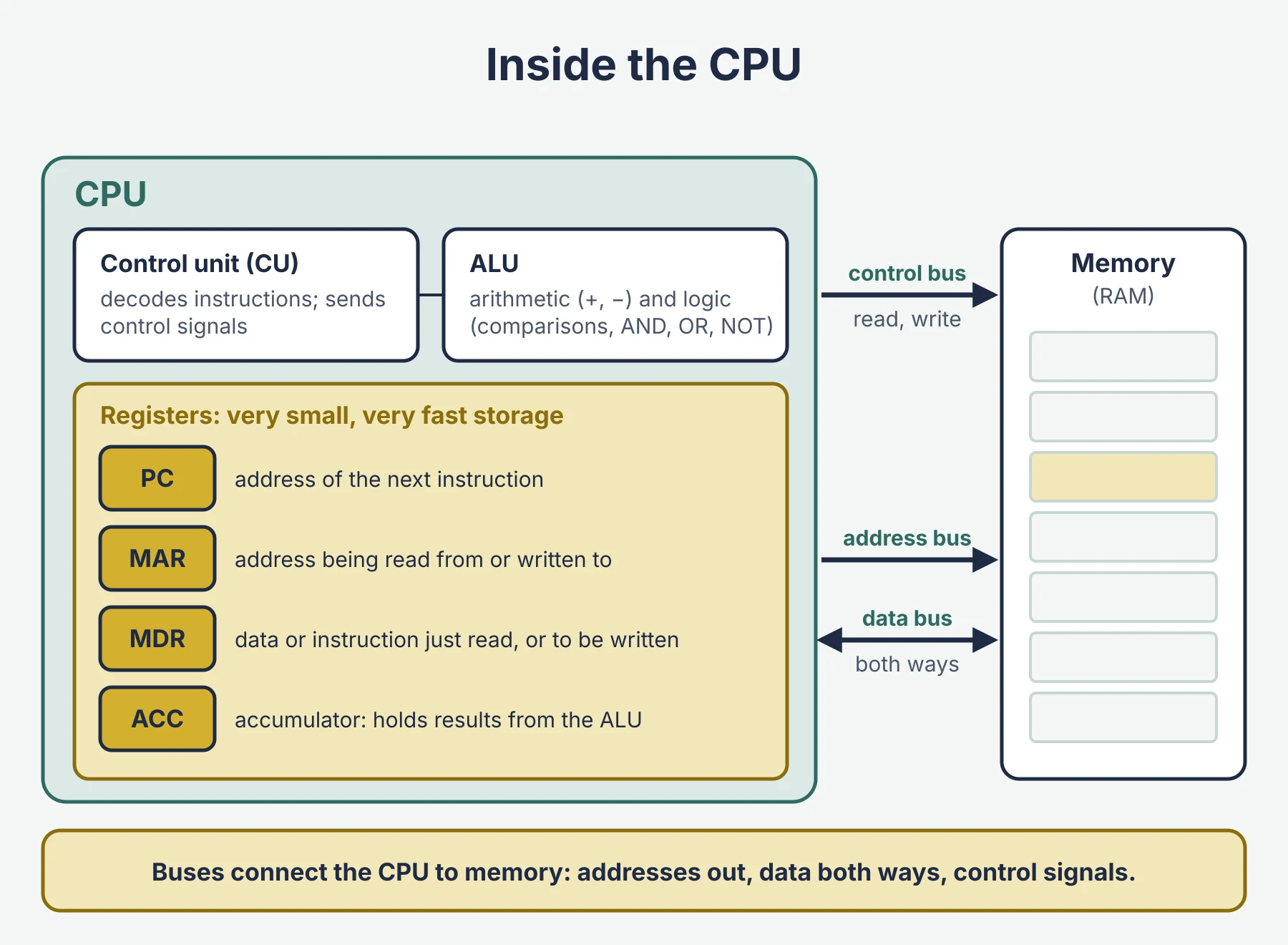
| CPU | Central processing unit: fetches, decodes and executes instructions |
| Control unit (CU) | Decodes instructions; sends control signals |
| ALU | Performs arithmetic and logical operations |
| Register | Tiny, very fast storage inside the CPU |
| Program counter (PC) | Holds the address of the next instruction |
| MAR | Memory address register: address to read from or write to |
| MDR | Memory data register: data or instruction being transferred |
| Accumulator | Holds results from the ALU |
| Address / data / control bus | Carry addresses / data / control signals |
| Cache | Small, fast memory near the CPU holding frequently used data |
| RAM | Volatile main memory for programs and data in use |
| ROM | Non-volatile memory holding start-up instructions |
| Virtual memory | Secondary storage used as an extension of RAM |
| Bit / byte | One binary digit / eight bits |
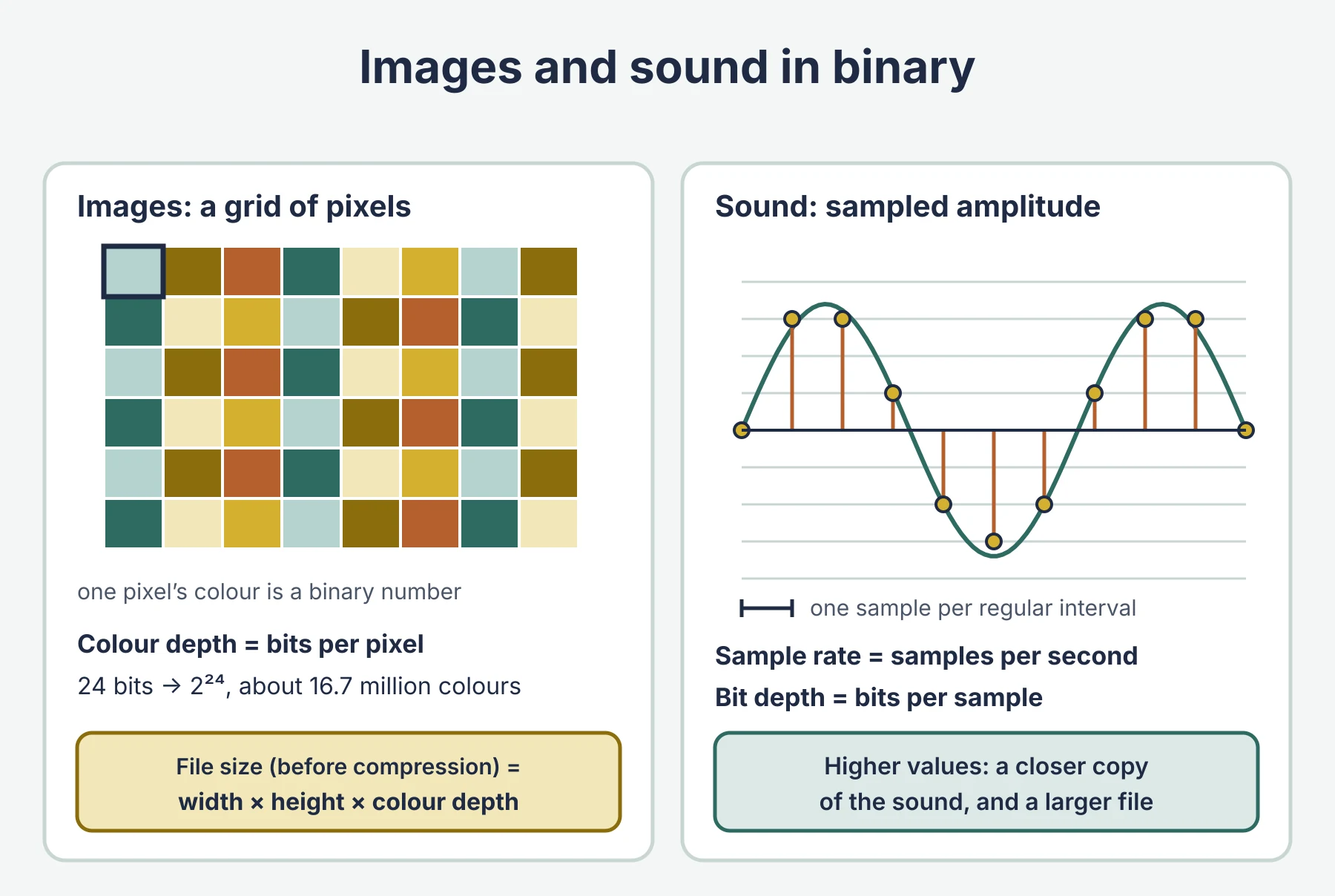
| Colour depth | Bits used per pixel |
| Sample rate / bit depth | Samples per second / bits per sample |
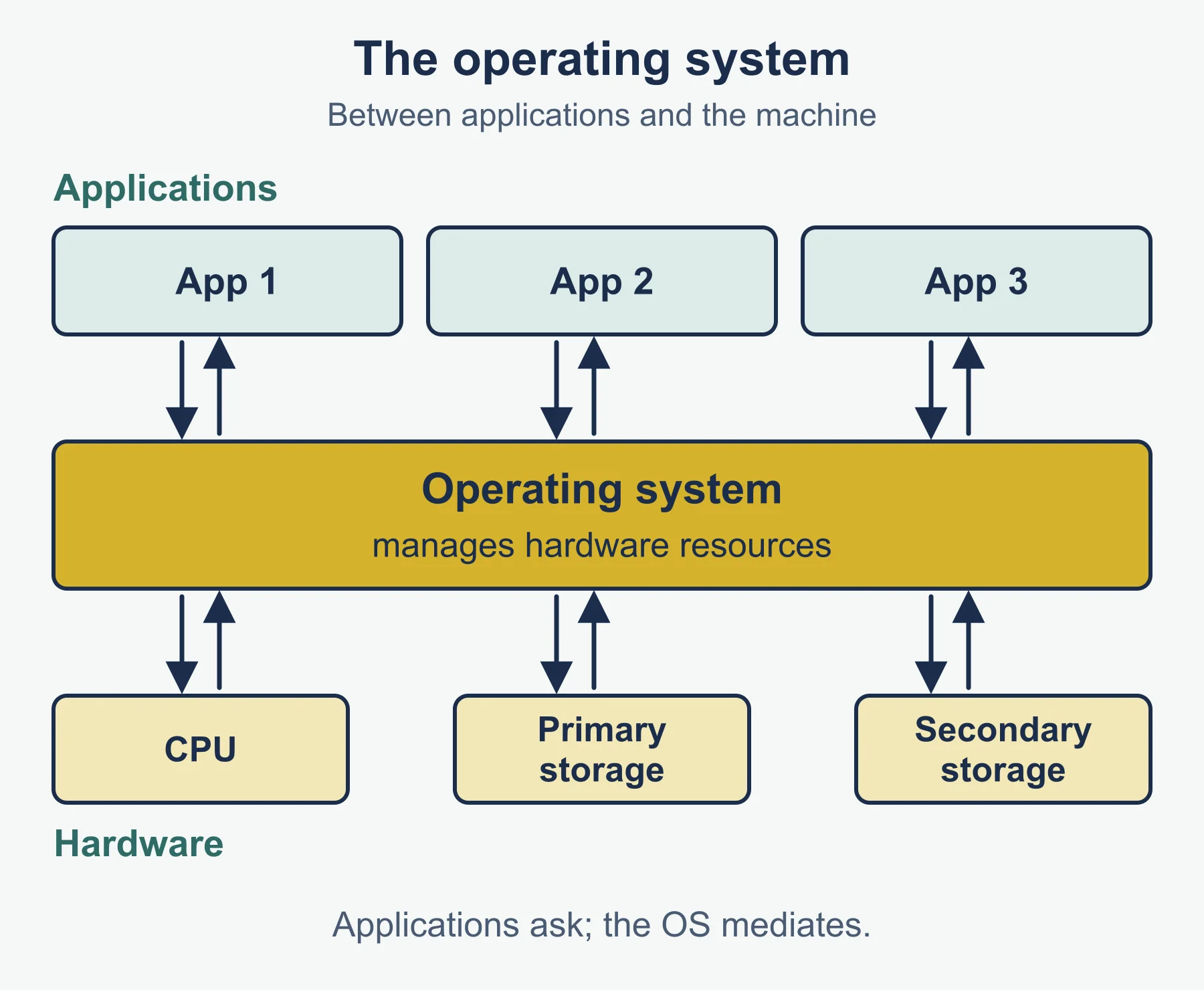
| Operating system | Software that manages hardware and provides services to applications |
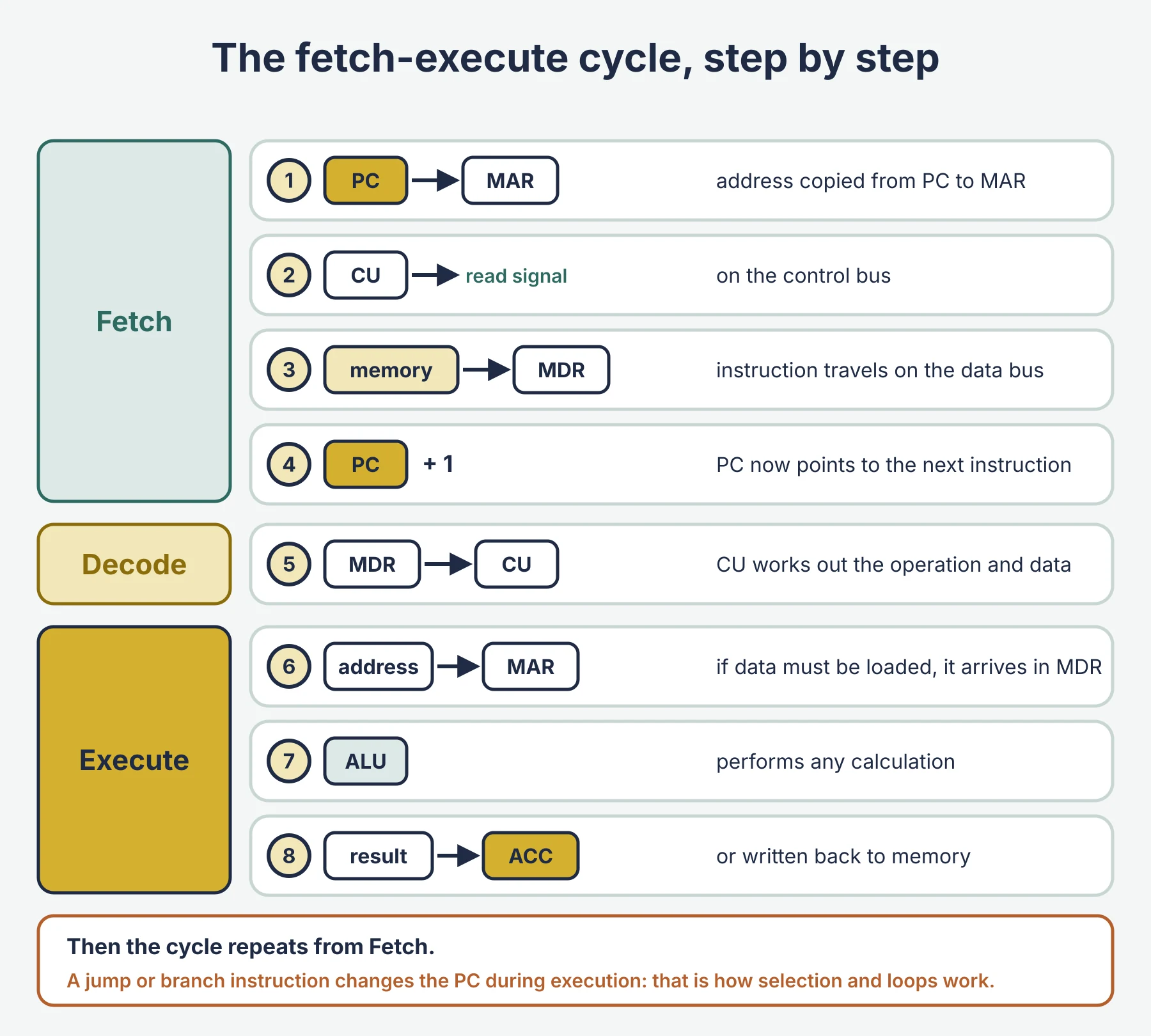
Fetch-execute in one line per step
- PC → MAR; read signal; instruction from memory → MDR; PC + 1.
- Instruction from MDR → CU, which decodes it.
- CU executes: data may be fetched via MAR/MDR; ALU calculates; result stored (e.g. in the accumulator or memory).
- Repeat. A jump instruction changes the PC.
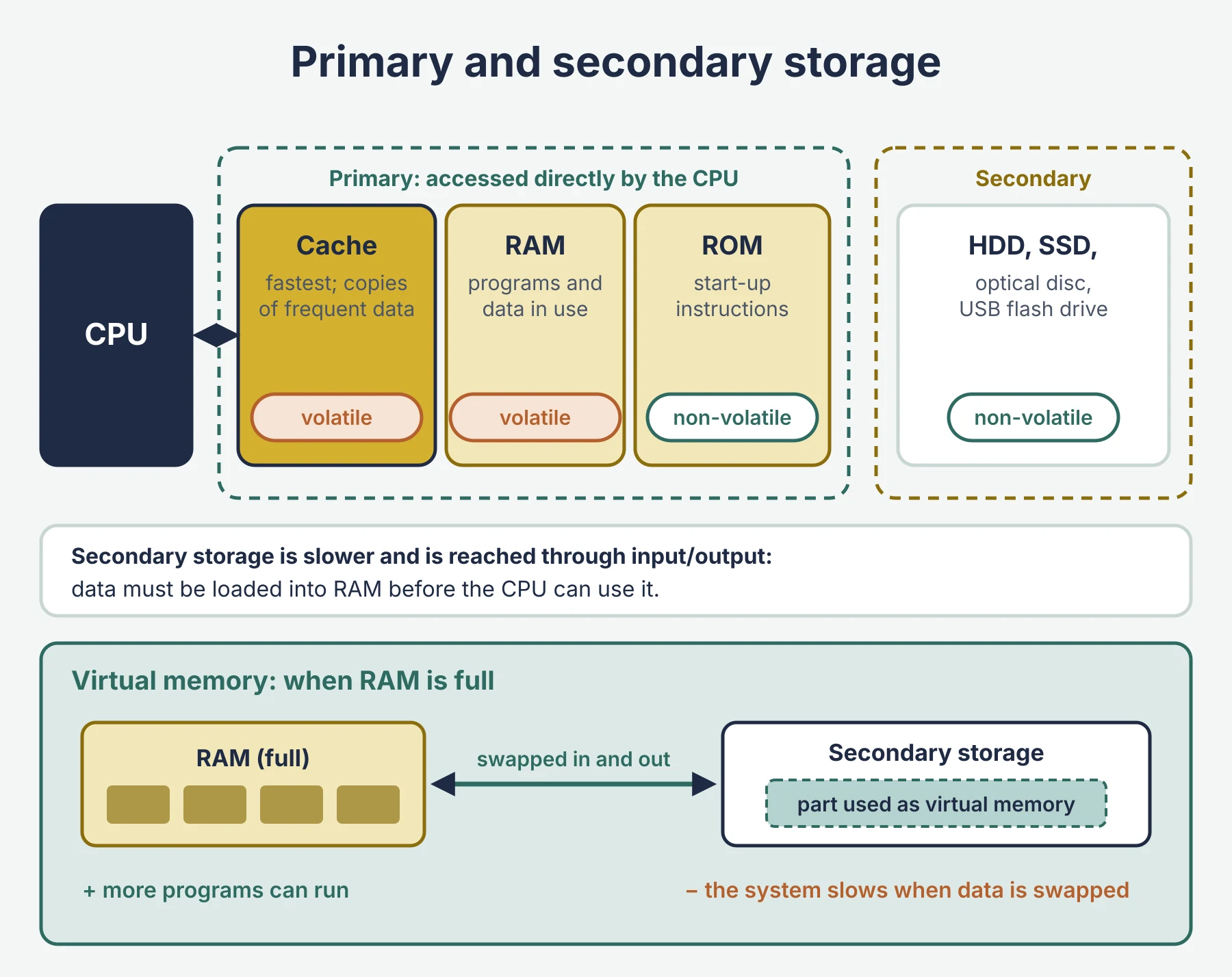
Storage at a glance
- Primary: cache (fastest, smallest), RAM (volatile), ROM (non-volatile).
- Secondary: HDD (magnetic, moving parts, cheaper per GB), SSD (flash, no moving parts, faster, more robust), optical, USB flash.
- Why both? Primary is fast but limited and mostly volatile; secondary is large and permanent but slower.
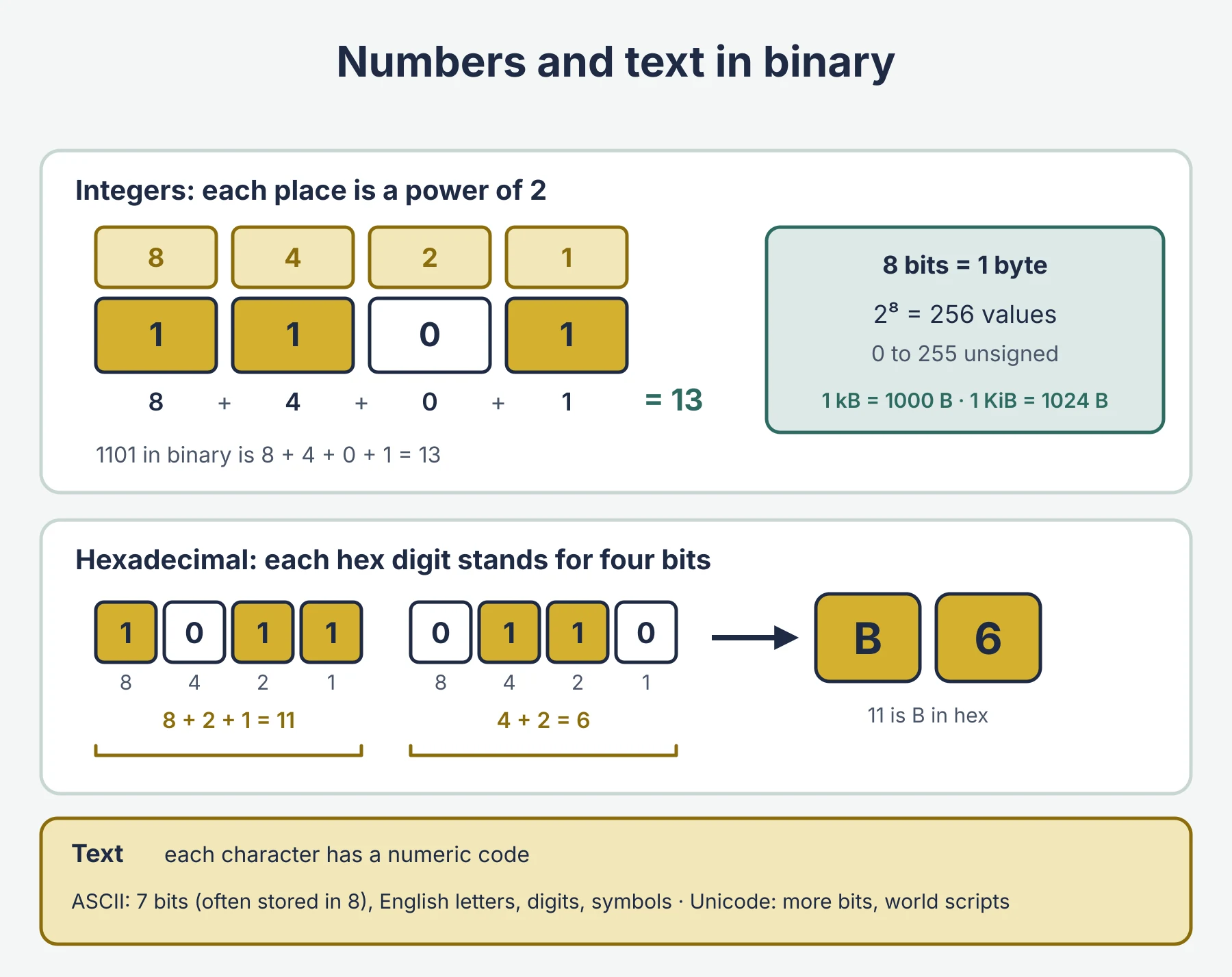
Data representation: formulas and facts
- Unsigned n-bit range: 0 to 2ⁿ − 1 (8 bits: 0–255).
- One hex digit = 4 bits; two hex digits = 1 byte.
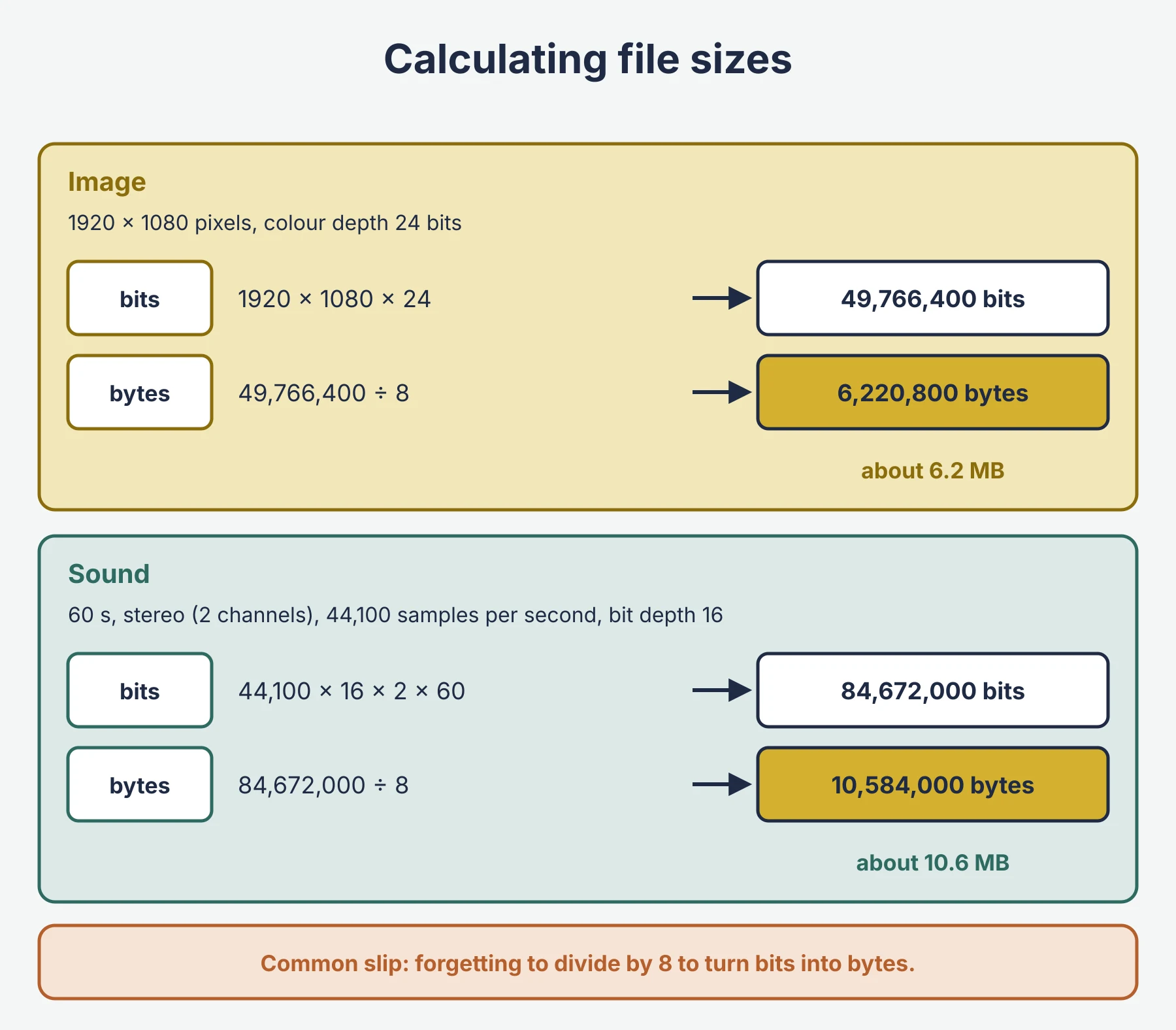
- Image size (bits) = width × height × colour depth.
- Sound size (bits) = sample rate × bit depth × channels × seconds.
- Bytes = bits ÷ 8.
- ASCII: 7-bit codes (often stored in 8); Unicode: more bits, characters from many languages.
Quick conversions
| Denary | Binary | Hex |
|---|---|---|
| 10 | 1010 | A |
| 15 | 1111 | F |
| 47 | 0010 1111 | 2F |
| 182 | 1011 0110 | B6 |
| 255 | 1111 1111 | FF |
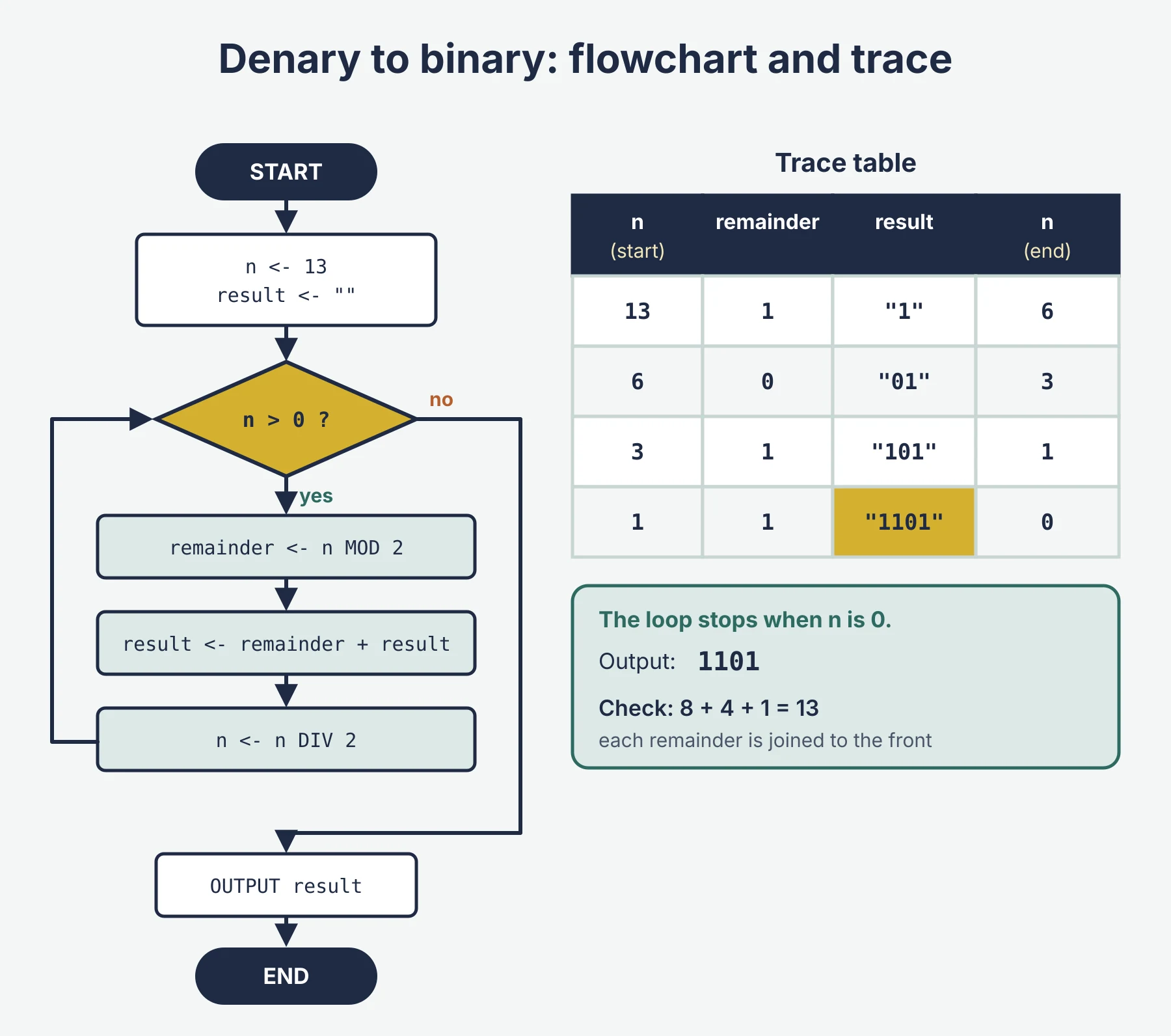
Method, binary to hex: split into groups of four from the right, convert each group. Method, denary to binary: repeatedly divide by 2 and read the remainders from last to first.
The operating system’s jobs
Memory management · process scheduling · device management with drivers · file management · security and access rights · user interface. Applications use OS services instead of controlling hardware directly.
Applying A.1 to scenarios
| Scenario detail | A.1 concept to apply | Point to make |
|---|---|---|
| A laptop slows when many apps are open | RAM, virtual memory | Swapping to secondary storage is slow; more RAM reduces it |
| A kiosk must start the same program every time it is switched on | ROM | Start-up instructions held in non-volatile memory survive power loss |
| A photo library is filling a phone’s storage | Colour depth, resolution | Fewer pixels or lower colour depth reduce file size, at a cost in quality |
| A music app offers “high quality” downloads | Sample rate, bit depth | Higher values copy the sound more closely but make larger files |
| A field laptop is dropped often | SSD vs HDD | No moving parts makes an SSD more robust |
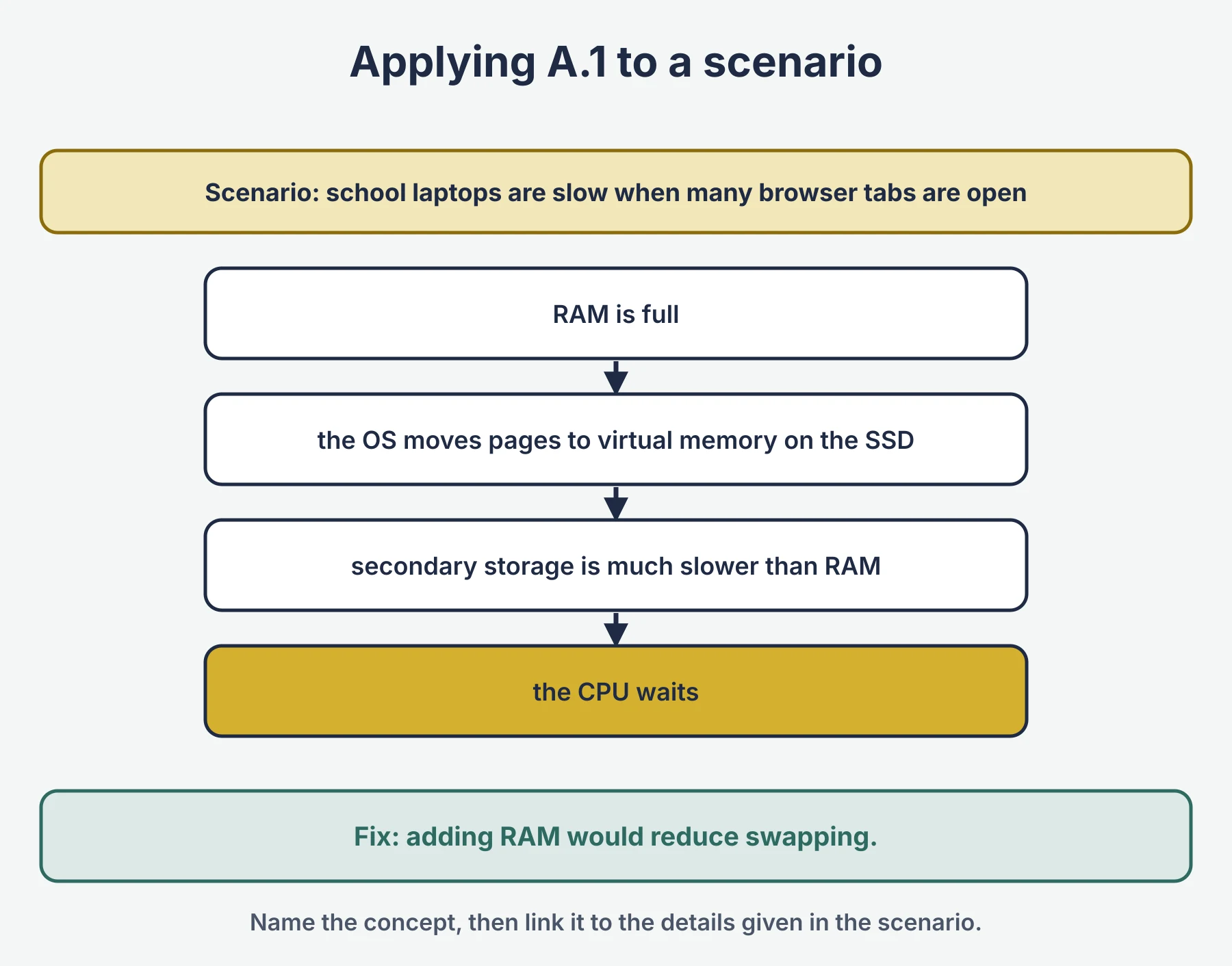
Exam traps
- Stage names only. Explain what happens in the PC, MAR, MDR and CU.
- Forgetting the PC increments during fetch.
- ROM as secondary storage. It is primary storage.
- Bits vs bytes. Divide by 8, and show your working.
- Cache vs virtual memory. Cache speeds the CPU up; virtual memory lets more programs run but slows the system.
- Generic answers in case-study questions. Tie each concept to the scenario’s details.
Self-test
- What does the program counter hold?
- Which register holds data that has just been read from memory?
- Which component performs comparisons?
- What happens to the PC during the fetch stage?
- Give two differences between RAM and ROM.
- Why does a computer use cache?
- When does virtual memory slow a computer down?
- How many values can 8 bits represent?
- Convert 1011 0101 to hexadecimal.
- An image is 800 × 600 pixels with an 8-bit colour depth. What is its size in bytes?
- Why does Unicode need more bits than ASCII?
- Give three functions of an operating system.
Answers: 1. The address of the next instruction. 2. The MDR. 3. The ALU. 4. It is incremented to point to the next instruction. 5. Any two: RAM is volatile, ROM is not; RAM can be written to in normal use, ROM is read-only or rarely changed; RAM holds programs and data in use, ROM holds start-up instructions. 6. To keep frequently used data and instructions close to the CPU so it waits less for RAM. 7. When data must be swapped often between RAM and much slower secondary storage. 8. 256. 9. B5. 10. 800 × 600 × 8 = 3,840,000 bits ÷ 8 = 480,000 bytes. 11. It must represent characters from many writing systems, far more than 128. 12. Any three: memory management, process scheduling, device management, file management, security, user interface.
Related pages
- A.1 Computer fundamentals study guide
- A.1 Computer fundamentals practice questions
- Theme A revision notes
Official syllabus
International Baccalaureate Organization, Diploma Programme Subject Brief – Sciences: Computer science, first assessment 2027, © 2024.
Related resources
-
Study guides
IB DP Computer Science (DP Computer Science): Control Systems (HL)
HL study guide to control systems in IB DP Computer Science A.1: sensors, controllers, actuators, feedback, open and closed loops, with worked scenarios.
Computer Science · International Baccalaureate · IB
Read guide -
Practice questions
IB DP Computer Science (DP Computer Science): Control Systems (HL) – Practice Questions
Twelve original HL questions on control systems for IB DP Computer Science A.1: sensors, actuators, feedback, control algorithms and evaluation, with answers.
Computer Science · International Baccalaureate · IB
Try questions -
Revision notes
IB DP Computer Science (DP Computer Science): Control Systems (HL) – Revision Notes
Condensed HL notes on control systems for IB DP Computer Science A.1: sensors, actuators, feedback, open and closed loops, design choices and a self-test.
Computer Science · International Baccalaureate · IB
Revise topic
Get free revision emails (optional)
Occasional emails with practice questions, worked explanations and links to free resources for the qualification and subjects you choose. No spam, and you can unsubscribe from any email. The free tools on this site never need an email.